Get Started with FeedBunk AI
For farms in our beta program — everything you need to go from camera to report: download the desktop app, set your camera up, mount it in the barn, and upload your photos. Not onboarded yet? Join the beta.
1 Download the desktop app
The FeedBunk AI Compressor app shrinks your trail-camera photos on your own computer, then uploads them for analysis. It handles SD cards with tens of thousands of images without breaking a sweat.
Signed for Mac and Windows. Installs with a double-click and keeps itself up to date automatically.
Latest version:
2 Camera settings
Any trail camera with a time-lapse mode works. Dial in these settings before you head to the barn.
00:00:10.
Leave any “first shot time” or schedule window blank or off — the camera should shoot
around the clock.
3 Set up the camera in the barn
Three steps: settings, placement, start. Ten minutes with a ladder and a strap.
Mount the camera
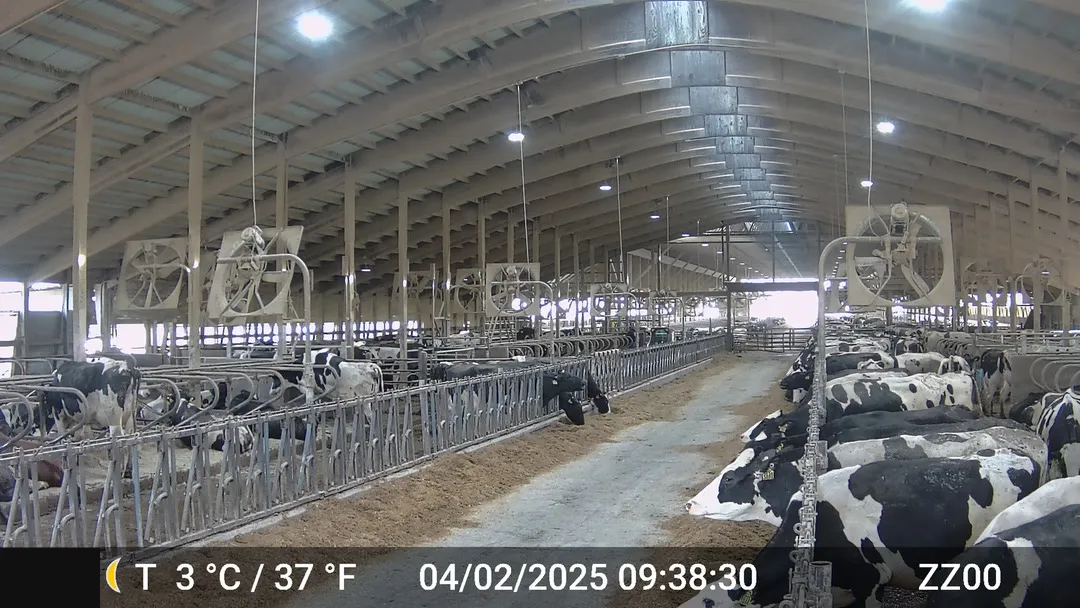
- Near the beginning of the barn or pen.
- At least 5 feet high — 6 feet or higher is ideal. Strap it to any vertical pole, post, bar, or fan.
- Aim it down the alley so the opposite feed bunk fills as much of the frame as possible — the close edge of the opposite bunk should stay in frame all the way to the far end of the alley. There’s no exact angle: check the camera’s preview and adjust until you have it.
- Out of reach of cows.
4 Upload with the desktop app
Back at a computer, six steps take you from SD card to finished report.
-
Install & open
Double-click the installer you downloaded. The app is signed for Mac and Windows, so it installs without security warnings.
-
Log in
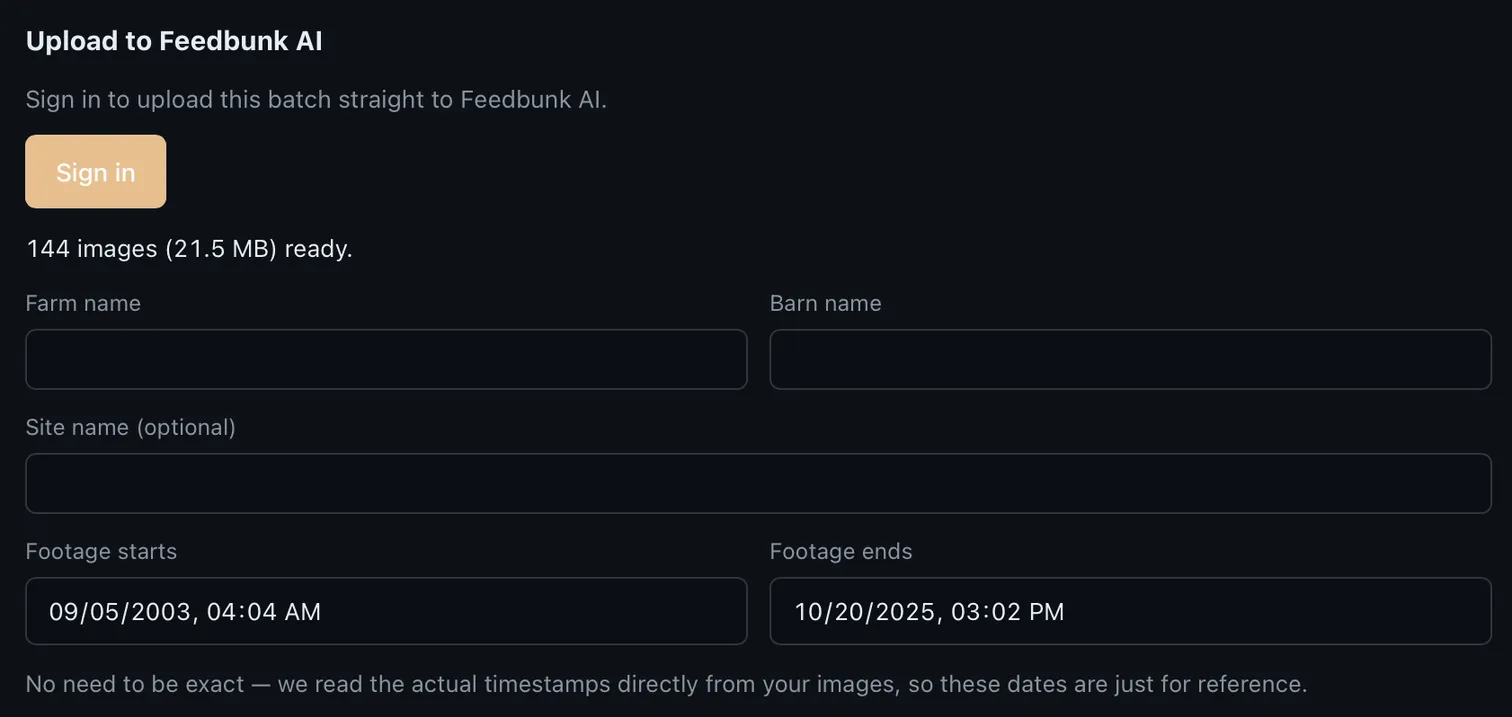
Sign in with your FeedBunk AI account — or click “Create account,” which opens your browser to register.
-
Insert the SD card & select the photo folder
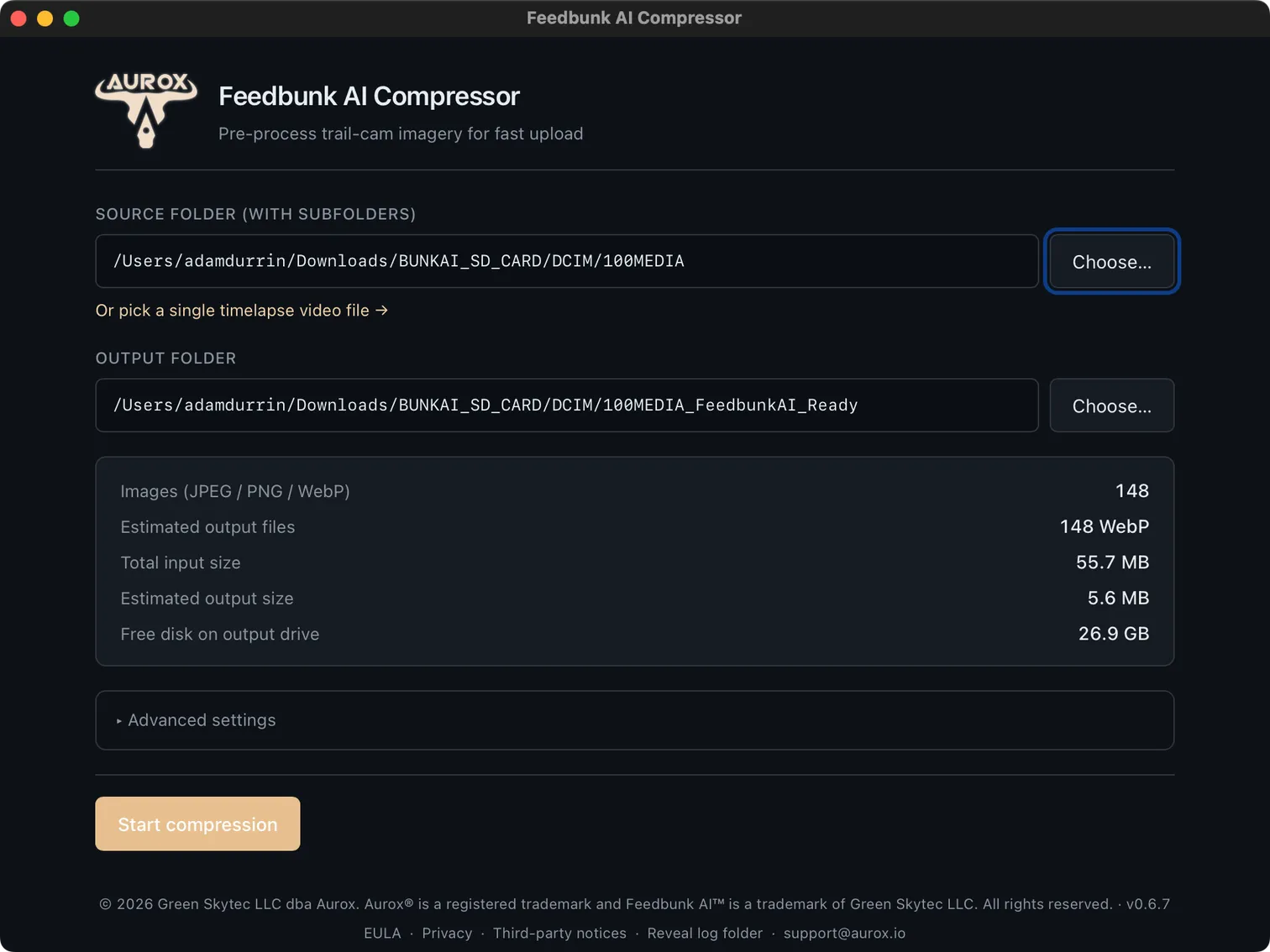
Put the SD card in your computer and pick the folder with your camera’s photos in the app.
-
Compress
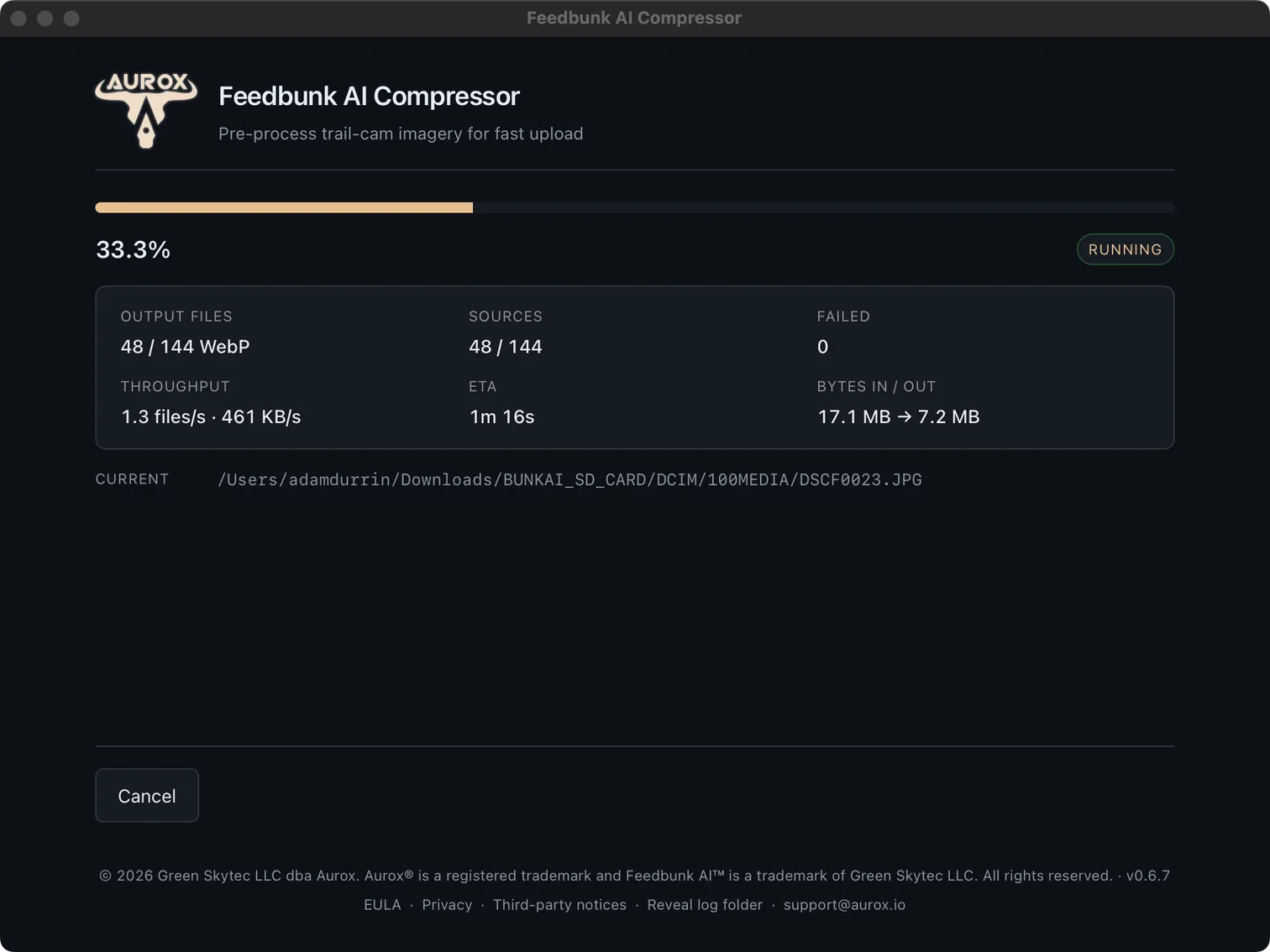
The app shrinks the photos on your computer to a small fraction of their original size, preserving the timestamps. It’s safe to close mid-job — it resumes where it left off.
-
Review & confirm
Review the batch summary in the app and confirm — nothing uploads until you approve it.
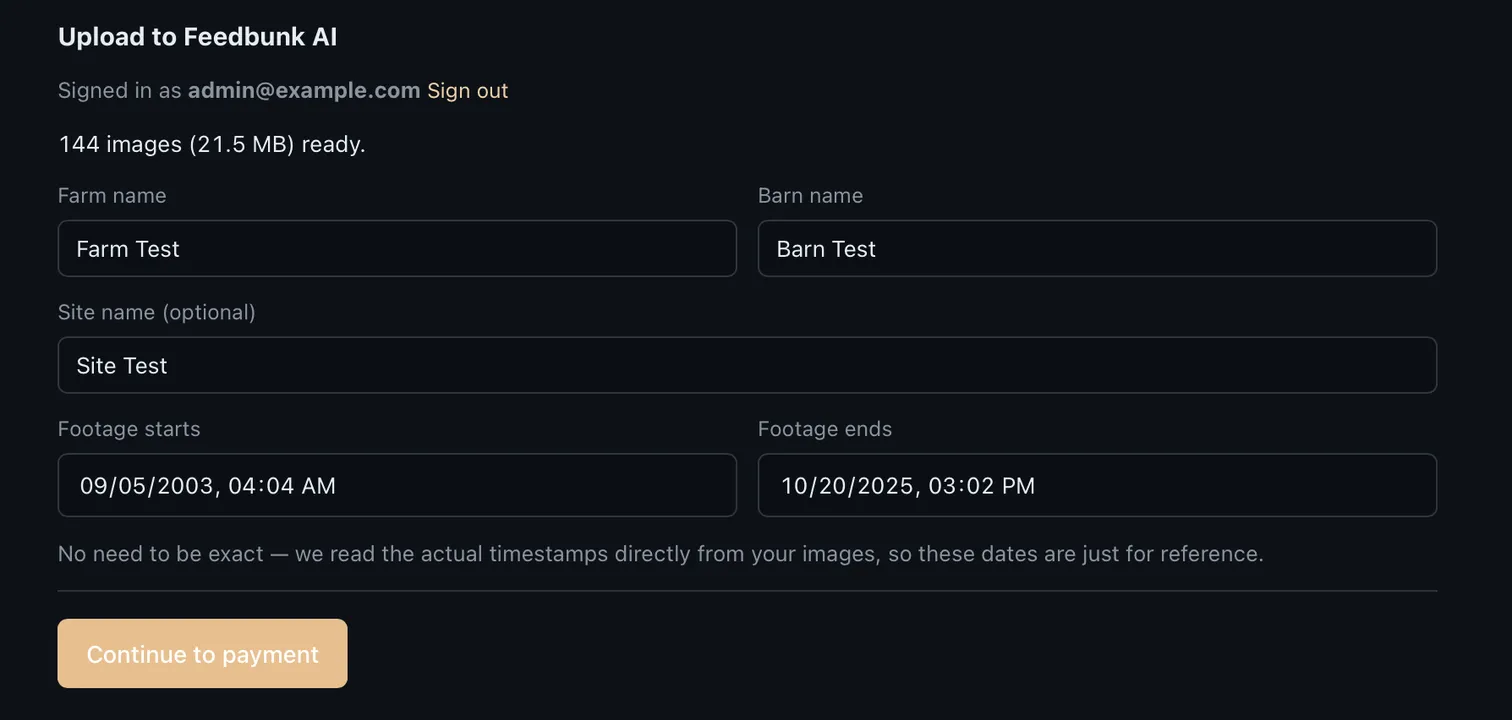
-
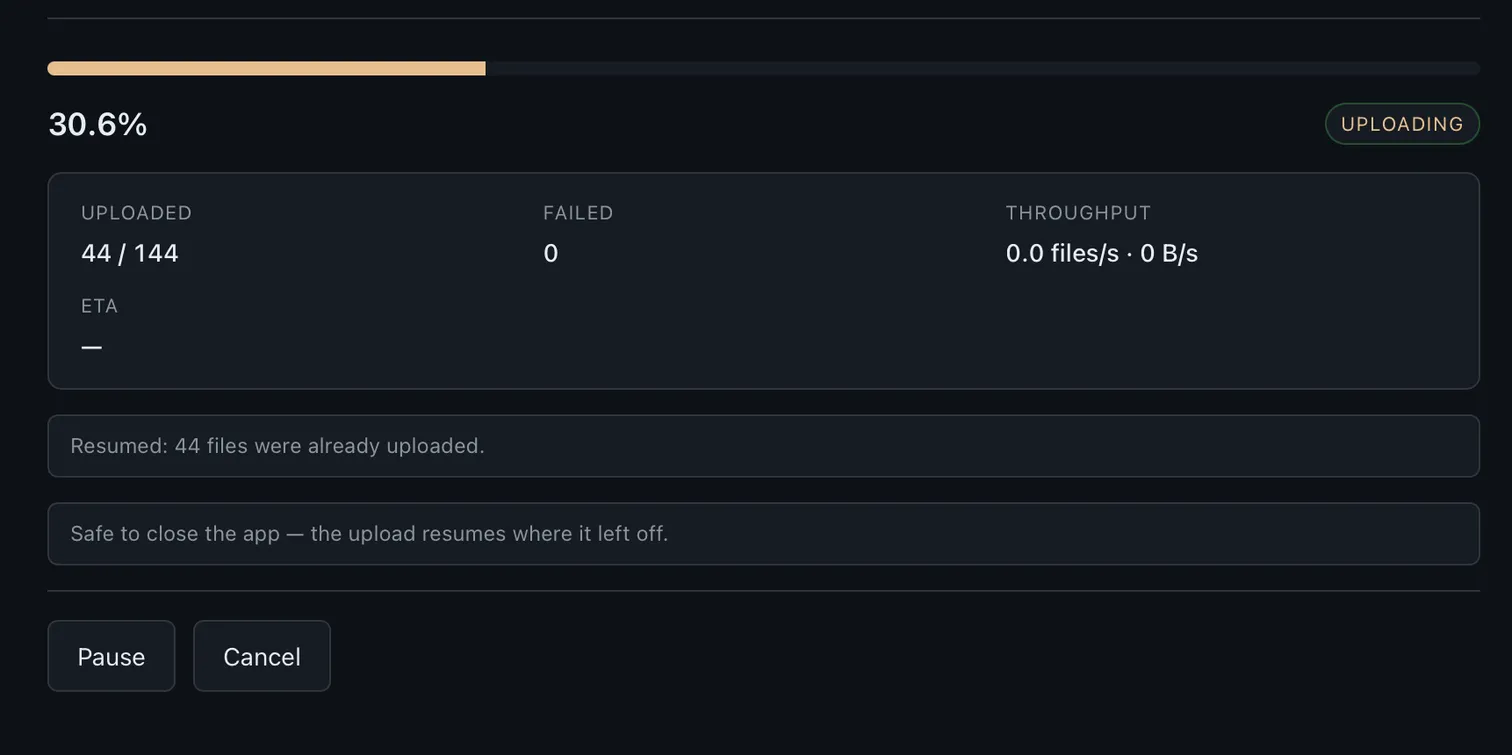
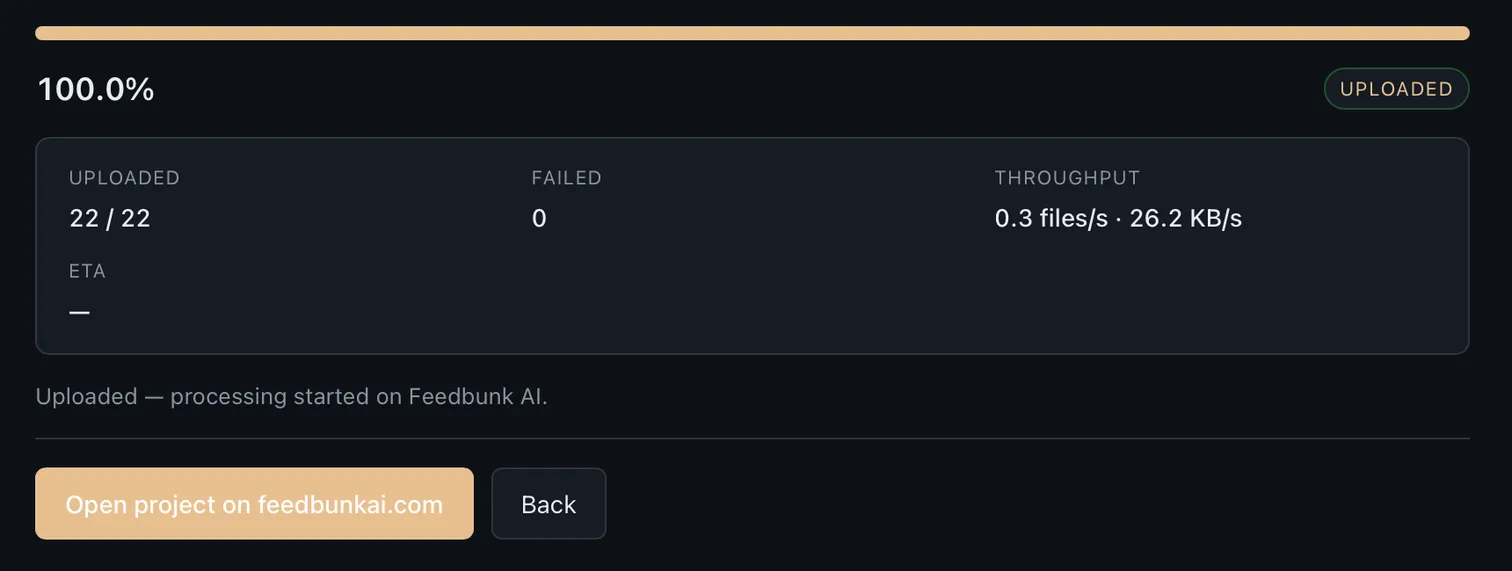
Upload & get your report
Uploads are resumable, so an interrupted connection never restarts the job. When processing finishes, your report is waiting on the project page — the app gives you the link.
Do I need to update the app?
No. The app checks for updates and installs them automatically. Install it once and you always have the current version.
What happens if compression or upload is interrupted?
Nothing is lost. The app is safe to close mid-job — both compression and uploads resume right where they left off the next time it runs.
Need help?
Browse the Help Center for step-by-step guides on the camera, the app, and reading your report — or email support@feedbunkai.com and we’ll get back to you.